



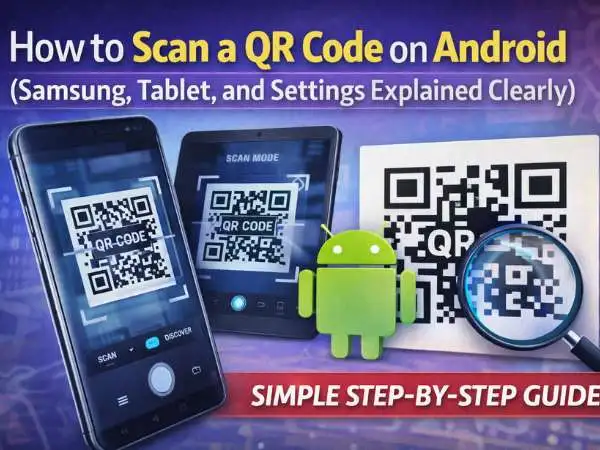


If you’re asking how do you scan a QR code Android, here’s the direct answer:
Open your Camera app, point it at the QR code, and tap the pop-up link. Most Android phones today scan QR codes automatically.
That’s it.
But if nothing happens when you try, don’t worry. I’ve seen this confuse people more times than I can count. Sometimes the setting is off. Sometimes the camera app differs by brand. Sometimes people assume they need a separate app when they don’t.
Let’s walk through this properly, step by step, in plain language.
Why QR Code Scanning Is Built Into Android Now
A few years ago, you needed a separate QR scanner app. I remember downloading one just to access a restaurant menu. It felt unnecessary.
Now, Android builds QR scanning directly into the camera.
Why?
QR codes exploded in use. Restaurants, payments, Wi-Fi access, event tickets, banking, product verification. During the contactless boom, QR codes became standard.
Google responded by adding QR recognition into Android’s core camera system. Samsung added extra shortcuts. Tablets followed the same path.
So in most cases, your phone already has everything you need.
also read : – Deleting Apps On IPhone
How Do You Scan a QR Code on Android (Standard Method)
Let’s start with the most common way.
- Open your Camera app.
- Point it at the QR code.
- Hold steady for a few seconds.
- Tap the pop-up notification.
You do not need to press the shutter button. Just aim and wait.
If it works, you’ll see a link preview at the bottom of the screen.
That’s it.
The first time I tried this on a newer Android device, I overcomplicated it. I kept taking photos of the code instead of just hovering. You don’t need to take a picture. The system detects it automatically.
What If Nothing Happens?
If your camera doesn’t react, one of three things is usually happening:
- QR scanning is turned off.
- You’re using an older Android version.
- Lighting or focus is poor.
Let’s fix those.
How to Enable QR Code Scanning on Android
Sometimes the feature exists but isn’t active.
Here’s how to check:
- Open Camera.
- Tap the Settings icon.
- Look for “Scan QR Codes.”
- Turn it ON.
If you don’t see that option, your phone likely uses Google Lens instead.
Some Android brands integrate QR detection through Lens automatically, so the toggle may not appear.
also read : – Life-Changing Mobile Apps for the Blind or Visually Impaired: Latest Guide
Using Google Lens to Scan QR Codes
Google Lens is built into most Android devices.
It’s powerful. It rarely fails.
There are two ways to use it.
Method One: Inside Camera
Open Camera.
Tap the Lens icon.
Point at the QR code.
Tap the result.
Method Two: Google App
Open the Google app.
Tap the Lens icon near the search bar.
Scan the code.
I use Google Lens when the camera doesn’t immediately trigger detection. It works almost every time.
I scanned a shipping label recently that my camera ignored. Lens picked it up instantly.
Ways to Scan a QR Code on Android Samsung
Samsung adds extra convenience.
If you use a Galaxy device, you have more options.
Option One: Standard Camera
Open Camera.
Point at QR code.
Tap link.
Simple.
Option Two: Quick Panel QR Scanner
This is fast.
- Swipe down from the top of your screen.
- Swipe again to expand Quick Panel.
- Tap “Scan QR Code.”
If you don’t see it:
- Tap three dots.
- Choose Edit buttons.
- Add the QR scanner shortcut.
I like this method when I need speed. No opening full camera app. Just swipe and scan.
Option Three: Samsung Internet Browser
Samsung Internet includes a QR scanner.
Open the browser.
Tap menu.
Select QR code scanner.
It’s a backup option if camera detection fails.
also read : – Benefits of Instagram Marketing: A Comprehensive Guide
How Do You Scan a QR Code on Android Tablet?
Tablets follow the same logic as phones.
Open the Camera app.
Point it at the QR code.
Tap the pop-up.
I tested this on a Samsung Galaxy Tab and a Lenovo tablet. Both scanned without installing anything.
If your tablet doesn’t auto-scan, use Google Lens inside the Google app.
The process is nearly identical to phones.
When QR Scanning Doesn’t Work
Let’s troubleshoot properly.
1. Clean the Lens
It sounds basic. But it matters.
Smudges reduce detection accuracy.
Wipe the lens gently.
2. Improve Lighting
QR codes need contrast.
If you’re in low light, detection slows down.
Move closer or increase light.
3. Hold Steady
Shaky hands can prevent focus lock.
Pause for two seconds.
4. Update Android
Go to:
Settings → Software Update.
Older Android versions may not support built-in QR scanning.
5. Restart Your Phone
I’ve fixed camera glitches this way more times than I expected.
Restarting resets background processes.
also read : – Sears Card Login Instructions: Get All the Information about Sear Card Login Details Here
Do You Need a QR Code Scanner App?
In most cases, no.
Modern Android phones already include QR scanning.
Third-party apps are only necessary if:
- Your device runs very old Android.
- Built-in camera lacks QR support.
- You want extra scanning features.
If you download an app, check reviews and permissions.
A QR scanner should only need camera access.
If it asks for contacts or location, skip it.
Security Tips Before Tapping QR Links
QR codes can link anywhere.
Before tapping:
- Look at the URL preview.
- Avoid strange domain names.
- Don’t enter payment details blindly.
QR scams have increased in public places. Fake parking meters. Fake payment signs.
I always check the link carefully. It takes one second.
Be cautious.
Real-Life Uses for QR Scanning
I scan QR codes daily.
Restaurant menus.
Event check-ins.
Wi-Fi network sharing.
Payment apps.
Product manuals.
QR codes reduce typing. They speed up access.
Once you know your camera handles them automatically, the process feels natural.
also read : – Everything You Need to Know About Custom Built PC
Final Thoughts
If you’re wondering how do you scan a QR code Android:
Open Camera.
Point at code.
Tap the link.
If it doesn’t work, enable QR scanning or use Google Lens.
Samsung users can use Quick Panel.
Tablets work the same way.
No special app required in most cases.
Test it now with any QR code nearby. It should work within seconds.
Once you try it properly, you’ll see how simple it really is.